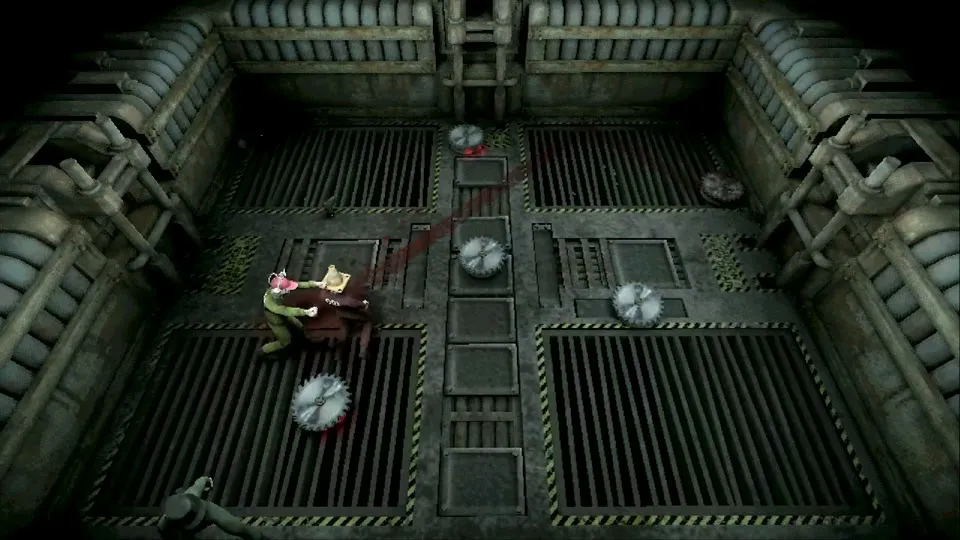
Complete Machine Party Control Scheme
Machine Party by Mike Klubnika features responsive, physics-based character controls tailored for lethal minigame precision. The game provides native Full Controller Support across Xbox Wireless controllers, PlayStation DualShock 4 and DualSense gamepads, Steam Deck inputs, and traditional PC Keyboard and Mouse configurations.
Below is the verified master input binding table across all supported hardware configurations.
| In-Game Action | Primary PC Keyboard & Mouse | Alternative Keyboard Keys | Xbox Controller Mapping | PlayStation Gamepad Mapping |
|---|---|---|---|---|
| Move Forward | W | Up Arrow | Left Analog Stick (Up) | Left Analog Stick (Up) |
| Move Backward | S | Down Arrow | Left Analog Stick (Down) | Left Analog Stick (Down) |
| Move Left | A | Left Arrow | Left Analog Stick (Left) | Left Analog Stick (Left) |
| Move Right | D | Right Arrow | Left Analog Stick (Right) | Left Analog Stick (Right) |
| Interact / Pick Up Item | E | Spacebar | A Button | Cross (X) Button |
| Primary Action / Throw / Fire | F | Left Mouse Button | Right Trigger (RT) | Right Trigger (R2) |
| Secondary Action / Shove | Right Mouse Button | Q | Left Trigger (LT) | Left Trigger (L2) |
| Pause / In-Game Menu | Escape | Tab | Start / Menu Button | Options Button |
| Camera Rotation (Where Applicable) | Mouse Movement | NumPad (Arrows) | Right Analog Stick | Right Analog Stick |
Minigame-Specific Hardware Recommendations
Because Machine Party cycles through 15 distinct gameplay genres—from first-person shooting in Duck Hunt to 3D voxel chiseling in Chisel Gauntlet—certain input devices offer distinct competitive advantages:
| Minigame Category | Recommended Input | Mechanical Advantage | Pro Execution Advice |
|---|---|---|---|
| Aim-Critical Rounds (Duck Hunt, Firearm Factory) | Mouse & Keyboard | Raw optical sensor precision allows instant flick targeting on sprinting runners | Set mouse DPI between 800 and 1200 to prevent crosshair overshooting during rapid target acquisition |
| Voxel Sculpting (Chisel Gauntlet) | Mouse & Keyboard | Point-and-click accuracy eliminates thumbstick cursor drift when chiseling 1x1 stone blocks | Commit to your mouse before the inspection shield drops; swapping mid-round causes input lag |
| Rhythm & Cardinal Steps (Wrong Way) | D-Pad or Keyboard Arrows | Mechanical micro-switches prevent accidental diagonal drift when directional arrows invert | Rest four fingers directly across discrete arrow keys to execute 50-step streaks with zero latency |
| Combat & Knockback Arenas (Lethal Rebound, Debris Platforms) | Gamepad Analog Stick | 360-degree analog locomotion provides smoother fluid arcs around bouncing sawblades | Keep index fingers resting directly on LT/L2 for instant retaliatory counter-shoves |
| Industrial Vehicle Handling (Forklift Certified) | Gamepad Analog Stick | Progressive trigger travel allows feathering throttle and steering without spinning tires | Avoid full-throttle lockouts while carrying raised cargo containers |
4-Player Local Couch Co-op Input Configuration
Following the major v2.0 Co-op Update, Machine Party natively supports full 4-player same-screen multiplayer. For the complete lobby setup walkthrough, see our How to Play with Friends Guide:
Local Lobby Setup Rules
- Connect up to 4 physical gamepads via USB or Bluetooth.
- One participant can utilize the Keyboard & Mouse, allowing a 4-player party to play using only 3 controllers.
- In the
LOCALmenu, choose your playlist (Original, Custom, or Arcade — see our Arcade Mode Guide for its 10-round random shuffle rules). - Each connected player presses any face button (
Aon Xbox,Crosson PlayStation, orSpacebaron keyboard) to claim a character vessel. - Every participant enters their player tag and selects cosmetic options before pressing READY.
- Once all four participants are locked in, a 5-second countdown timer initiates the match.
Machine Party Controller Not Working: Troubleshooting Guide & Fixes
If your Machine Party controller not working error occurs, gamepad fails to register in lobby menus, suffers dropped inputs, or makes two players control the same character, execute the following technical resolution steps:
| Controller Problem | Root Cause | Verified Step-by-Step Fix |
|---|---|---|
| Gamepad Unresponsive in Menus | Game launched before gamepad handshake initialized | Fully exit Machine Party, connect the controller via USB, and relaunch the game |
| Two Players Control One Character | Virtual joystick drivers (vJoy, steering wheels, flight sticks) conflicting | Open Windows Device Manager -> Human Interface Devices; disable virtual input emulators (vJoy, vXbox) |
| PlayStation DualSense Not Detected | Windows default Bluetooth stack lacks native DirectInput mapping | Connect via wired USB-C cable, or enable Steam Input for PlayStation Controllers |
| Intermittent Disconnects in Couch Play | Windows USB Selective Suspend turning off root hubs | Open Device Manager -> Universal Serial Bus controllers -> USB Root Hub -> Power Management -> Uncheck “Allow the computer to turn off this device” |
| Input Stuttering in The Filter | Outdated game build prior to v2.1.1 | Verify game files on Steam to ensure build v2.1.2 or newer is installed |
Step-by-Step Steam Input Configuration Guide
To ensure any generic, Xbox, or PlayStation controller works flawlessly across all 15 minigames:
- Open the Steam Client.
- Click Steam in the top-left corner and open Settings -> Controller.
- Under the External Gamepad Settings section, toggle ON:
Enable Steam Input for Xbox controllersEnable Steam Input for PlayStation controllersEnable Steam Input for generic controllers
- Navigate to your Steam Library, right-click Machine Party, and select Properties.
- Click the Controller tab in the left sidebar.
- In the dropdown menu, select Enable Steam Input (overriding the default game configuration).
- Relaunch Machine Party. The Steam overlay notification will confirm your controller configuration is active.
Frequently Asked Questions
Can I remap keyboard keybindings in-game?
Yes. From the main menu, navigate to Settings -> Controls. You can click any secondary keybinding slot to rebind actions to preferred custom keys.
Does the game support Nintendo Switch Pro Controllers?
Yes. When Steam Input is toggled on in Steam Settings, Nintendo Switch Pro Controllers function with full button mapping, utilizing the standard layout (B to interact, ZR to use/fire).
What should I do if my character drifts automatically without touching the stick?
If your character drifts slowly across the floor, open Steam Settings -> Controller -> Calibration & Advanced Settings. Slightly increase the Stick Deadzone by 3% to 5% to eliminate hardware potentiometer drift.