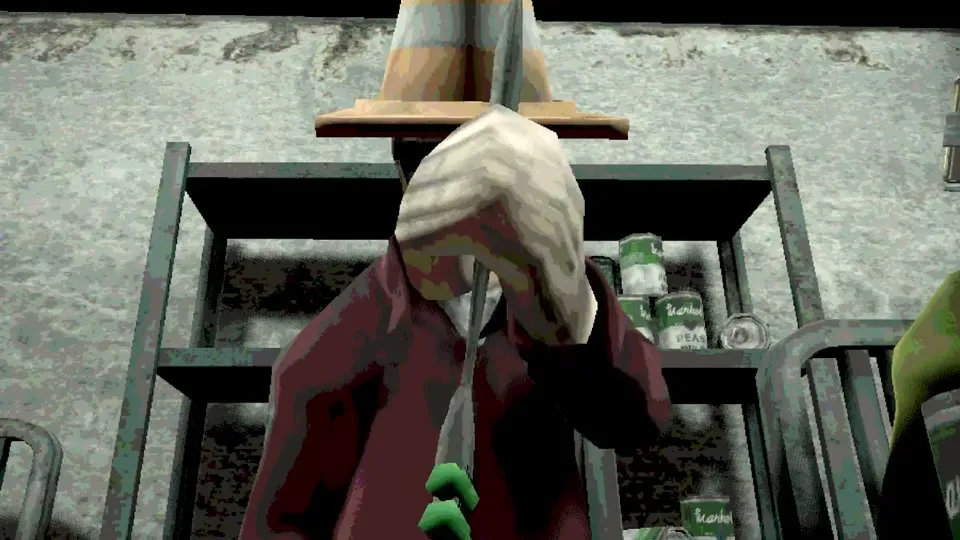
Complete Machine Party System Requirements & Steam Deck Guide
Machine Party by Mike Klubnika and GDeavid runs on a heavily customized, lightweight Godot engine build. The game utilizes retro-industrial low-poly geometry, atmospheric CRT post-processing, and tactile physics simulation. Because the game is verified on Steam Deck and features native builds for both Windows 11 (64-bit) and Linux / SteamOS, hardware requirements are remarkably modest.
Whether you are configuring an older desktop gaming rig, setting up a living room mini-PC for 4-player couch party sessions, or optimizing battery life on a handheld Steam Deck, this guide covers the exact hardware baselines, driver configurations, and performance tweaks necessary for locked 60 FPS gameplay.
Official PC Hardware Specifications
| Hardware Category | Windows 11 Minimum (Official) | Linux / SteamOS Minimum (Official) | Practical Community Recommendation |
|---|---|---|---|
| Operating System | Windows 11 (64-bit Architecture) | Ubuntu 12.04 LTS (64-bit) / SteamOS | Windows 10/11 (64-bit) or SteamOS 3.5+ |
| Central Processor (CPU) | Dual Core 2.4 GHz | Intel Core i3 Dual Core | Quad Core 3.0 GHz (AMD Ryzen 3 / Intel Core i5) |
| System Memory (RAM) | 8 GB System RAM | 4 GB System RAM | 8 GB Dual-Channel RAM |
| Graphics Card (GPU) | AMD Radeon RX 6500 XT / NVIDIA GTX 1660 | Relatively Modern GPU with Vulkan | NVIDIA GTX 1650 / AMD RX 580 or Handheld APU |
| Graphics API | Vulkan Support Required | Vulkan 1.2+ Support Required | Vulkan (Default) or Direct3D 12 Launch Flag |
| Storage Footprint | 1 GB Available Storage Space | 1 GB Available Storage Space | 1 GB Internal SSD or MicroSD Card |
Engine Architecture and Graphics Driver Selection
Machine Party ships with a default Vulkan rendering pipeline in the Godot engine. Vulkan provides low CPU driver overhead and consistent frame pacing, which is critical during physics-heavy simulations with active ragdolls like Lethal Rebound and Debris Platforms.
The Direct3D 12 Alternate Launch Flag
If you run an older graphics card where Vulkan drivers produce visual artifacts, black screen errors, or crashes during match transitions, the developer and SteamDB document an official alternate launch command:
- Right-click Machine Party in your Steam Library and select Properties.
- In the General tab, navigate to the Launch Options text input box.
- Paste the following parameter:
--rendering-driver d3d12 - Close the properties window and launch the game. This instructs the Godot engine to bypass Vulkan and execute through Direct3D 12 on Windows.
Storage Footprint and Install Breakdown
The official Steam store page reserves 1 GB of drive space for future content and hotfix staging. SteamDB depot analysis reveals that the actual compressed installation footprint is remarkably compact:
- Windows Depot Size: Approximately 700 MiB of unpacked assets.
- Linux Depot Size: Approximately 675 MiB of native binaries.
- Save Data and Configs: Stored in standard
%APPDATA%/Godot/app_userdata/Machine Partydirectories, consuming under 5 MiB.
Due to this lightweight footprint, Machine Party loads virtually instantaneously, whether installed on an ultra-fast NVMe SSD, an older SATA hard drive, or a standard handheld MicroSD card.
Comprehensive Steam Deck Optimization Guide
Machine Party holds official Steam Deck Verified status from Valve. The game runs out of the box with zero external configuration, featuring readable UI text, correct gamepad glyphs, and native 16:10 display support.
Handheld Display and Resolution
The internal screen of both the Steam Deck LCD and Steam Deck OLED features a native 1280x800 resolution (800p, 16:10 aspect ratio). Machine Party renders natively at 1280x800 with zero black bars or scaling stretching.
Recommended Handheld Settings for 60 FPS & Maximum Battery Life
To balance maximum smoothness with lengthy battery life while traveling:
| Handheld Parameter | Optimal Competitive Profile | Maximum Battery Saver Profile |
|---|---|---|
| In-Game Resolution | Native 1280x800 (16:10) | Native 1280x800 (16:10) |
| Refresh Rate & Frame Cap | 60 Hz / 60 FPS Locked | 60 Hz / 60 FPS Locked (or 40 Hz / 40 FPS) |
| Thermal Power Limit (TDP) | 9 Watts | 7 to 8 Watts |
| GPU Clock Frequency | Auto Scaling | Manual 1000 MHz |
| Estimated Battery Life | 3.5 to 4.5 Hours (OLED) | 4.5 to 5.5 Hours (OLED) |
| Total System Power Draw | Approximately 11 to 13 Watts | Approximately 8 to 10 Watts |
Because Machine Party’s low-poly models and minimal texture memory place negligible strain on the Deck’s Van Gogh APU, lowering the TDP to 8 or 9 Watts in SteamOS Quick Access settings provides locked 60 FPS while keeping fan noise virtually silent.
Steam Deck Docked Mode (4-Player Couch Gaming)
When connecting the Steam Deck to an external television via a USB-C dock for local party sessions:
- In Steam Game Properties -> General -> Game Resolution, select 1920x1080 or Default.
- Connect up to 4 Bluetooth or USB gamepads (Xbox, PlayStation DualShock 4, DualSense, or 8BitDo).
- In SteamOS Quick Access -> Controller Settings, ensure controller order is set correctly (Player 1 as primary).
- Machine Party automatically distributes viewport splits in local multiplayer modes without performance drops. For multiplayer setup steps, see our How to Play with Friends Guide.
Performance in 4-Player Local Split-Screen vs Online Lobbies
Hardware demands vary slightly depending on how you play:
| System Subsystem | Online Peer-to-Peer Workload | 4-Player Local Split-Screen Workload |
|---|---|---|
| GPU Rasterization | Renders a single camera viewpoint. GPU load stays below 25% on GTX 1660. | Renders multiple simultaneous camera viewports in Duck Hunt, Inside Job, and The Filter. GPU load increases moderately. |
| CPU Simulation | Manages local ragdoll physics and network packet synchronization. | Processes four simultaneous controller inputs and local physics simulations on one machine. |
| VRAM Consumption | Uses approximately 800 MB of video memory across single-screen arenas. | Uses approximately 1.1 GB of video memory with all cosmetic vessels loaded simultaneously. |
Pre-Launch Troubleshooting Checklist
If you encounter unexpected frame drops or stuttering during match play:
- Verify Windows Graphics Drivers: Ensure your GPU has drivers supporting Vulkan 1.2 or higher. Older drivers from 2020 or earlier may experience pipeline stalls.
- Disable Aggressive Third-Party Overlays: Screen capture overlays (such as Discord or OBS game hooks) can occasionally conflict with Godot’s Vulkan swapchain. Switch to windowed borderless display if stutter occurs.
- Check Controller Polling: Multiple wireless Bluetooth gamepads connected to a single low-quality USB Bluetooth dongle can cause input lag. Use dedicated 2.4 GHz wireless adapters or wired USB hubs for local couch sessions. Full button bindings are documented in our Controls and Gamepad Guide.
- Network Latency: In peer-to-peer online lobbies, frame pacing depends on the host’s machine. The host should always be on a wired Ethernet connection to prevent packet jitter. Consult our Room Code Protocol Guide for port and connection troubleshooting.